Pick a program. Pick an athlete. Pick a start date. The program shows up in the athlete's app instantly.
Click the athlete » Assign program
The fastest path: open Athletes, click the athlete you want to program for, hit "Assign program." Pick the program from your library. Set the start date (today or any day forward). Hit "Assign."
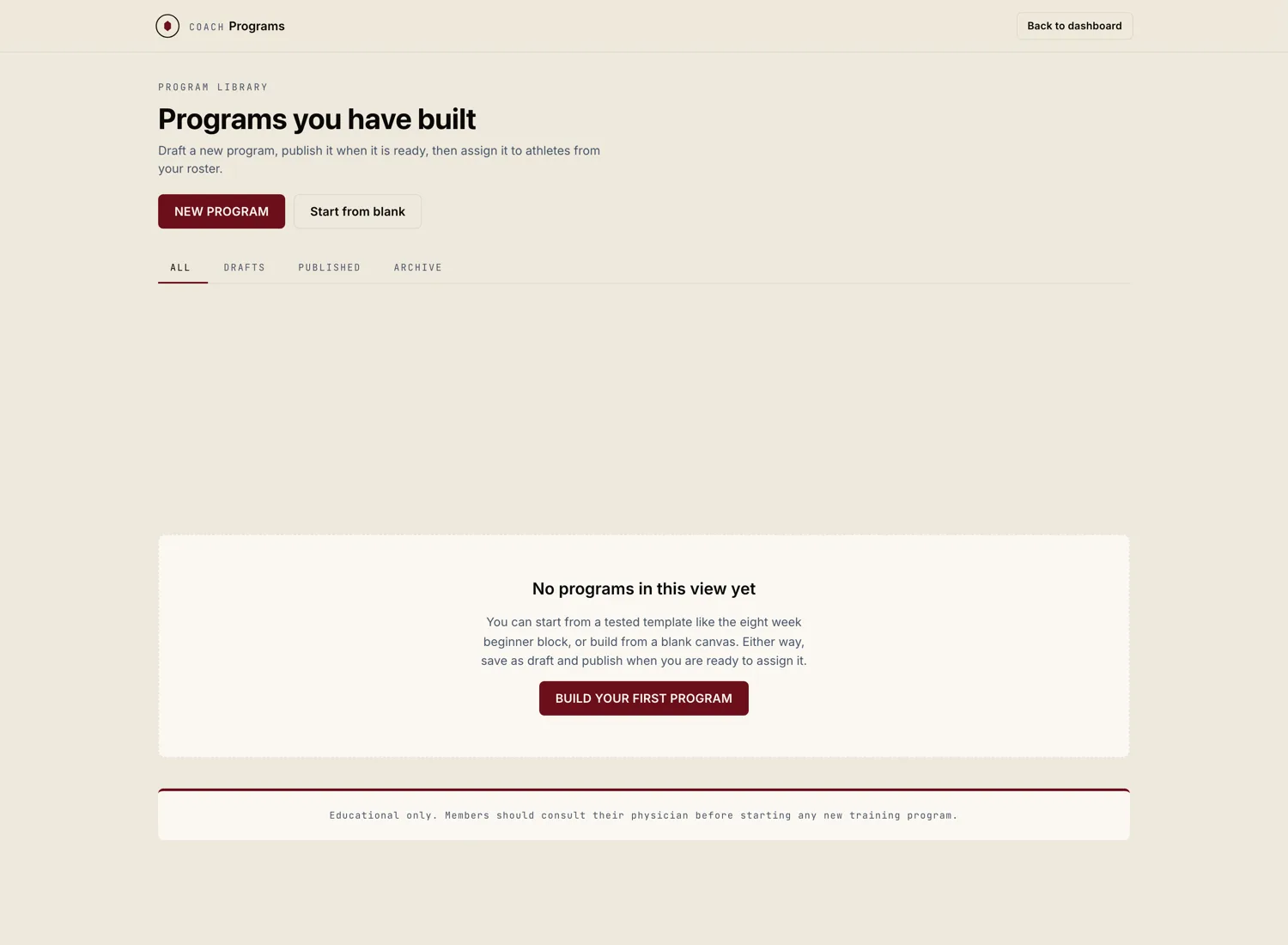
Pick the program first, then the athlete
Alternative path: open Programs, click the program, hit "Assign to athlete." Pick the athlete from your roster. Set the start date. Hit "Assign."
Use this path when you've just written a program and want to assign it to several athletes back to back.
Today or a future Monday
Most coaches set programs to start on Mondays for clean weekly cadence. You can pick any day, but the week numbering ("Week 1, Week 2, ...") follows the start date. If you set a Wednesday start, Week 1 runs Wednesday to Tuesday.
If the athlete is finishing a previous program, you can chain a new program to start the day after the old one ends. Hit "Chain after current program" in the assign dialog.
The athlete sees it immediately
The moment you hit "Assign," the program appears in the athlete's app. Their next session shows on their dashboard with the start date. If you assigned a program with a start date in the future, they see it but can't open sessions yet.
If you want to alert the athlete that a new program is live, send them a message from the in app thread. Marrow doesn't auto notify them; the choice is yours.
Two ways
You can edit a program inline for one athlete, or you can edit the master template and push the change to everyone running it.
- Inline edit. Open the athlete's program. Edit a session, a block, or a movement just for them. Changes save automatically. They take effect the next time the athlete opens that session.
- Template edit. Open the master template in Programs. Edit it. Then on each athlete running it, click "Re sync from template" to push the changes through.
Use inline edits for individual adjustments. Use template edits when a programming insight applies to every athlete on the program.