Open the program builder, lay out a week or twelve, and save a template you can reuse with every athlete who fits it.
Open the program builder
From your coach dashboard, click "Programs" in the side nav. Hit "New program." You'll get a blank slate with a starter week ready to fill in.
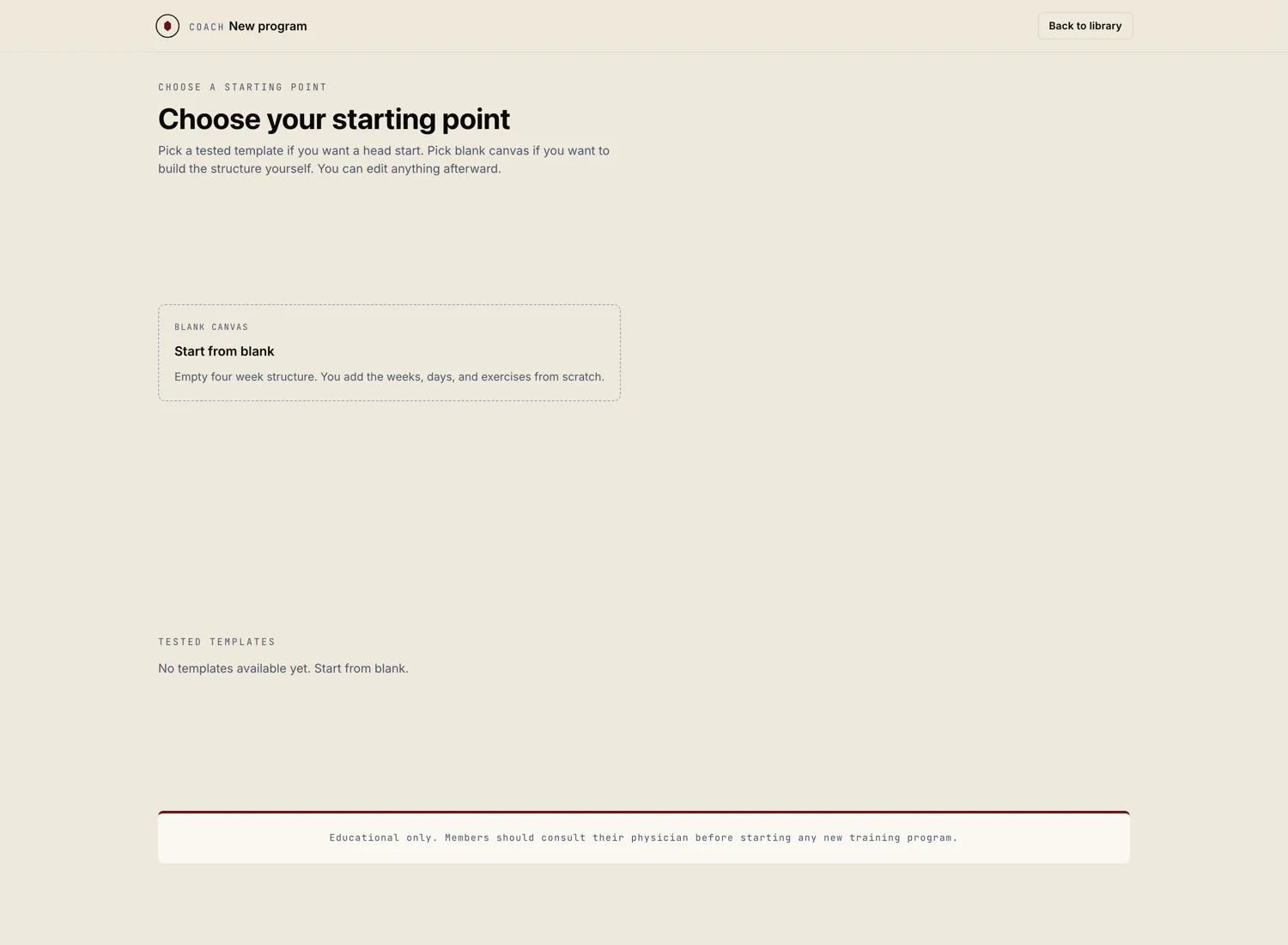
Name the program and set the basics
Give it a name you'll recognize ("12 Week Hybrid Build" beats "Program 1"). Pick the duration (one to twenty four weeks), the sessions per week, and whether the program is private or available in your template library.
If you'd rather start from a template a peer has published, hit "Browse marketplace" instead. You can clone any marketplace template into your own builder and edit it freely.
Lay out the sessions
Each session is a card. Drag sessions across the week, click in to edit. Inside a session you can add blocks (warm up, main, accessory, conditioning, cool down). Inside a block you can add movements, sets, reps, load targets, tempo, rest, and notes.
Movements pull from the Marrow movement library. If a movement you need isn't there, hit "Add custom movement" at the bottom of the picker. Your custom movements stay private to your account by default.
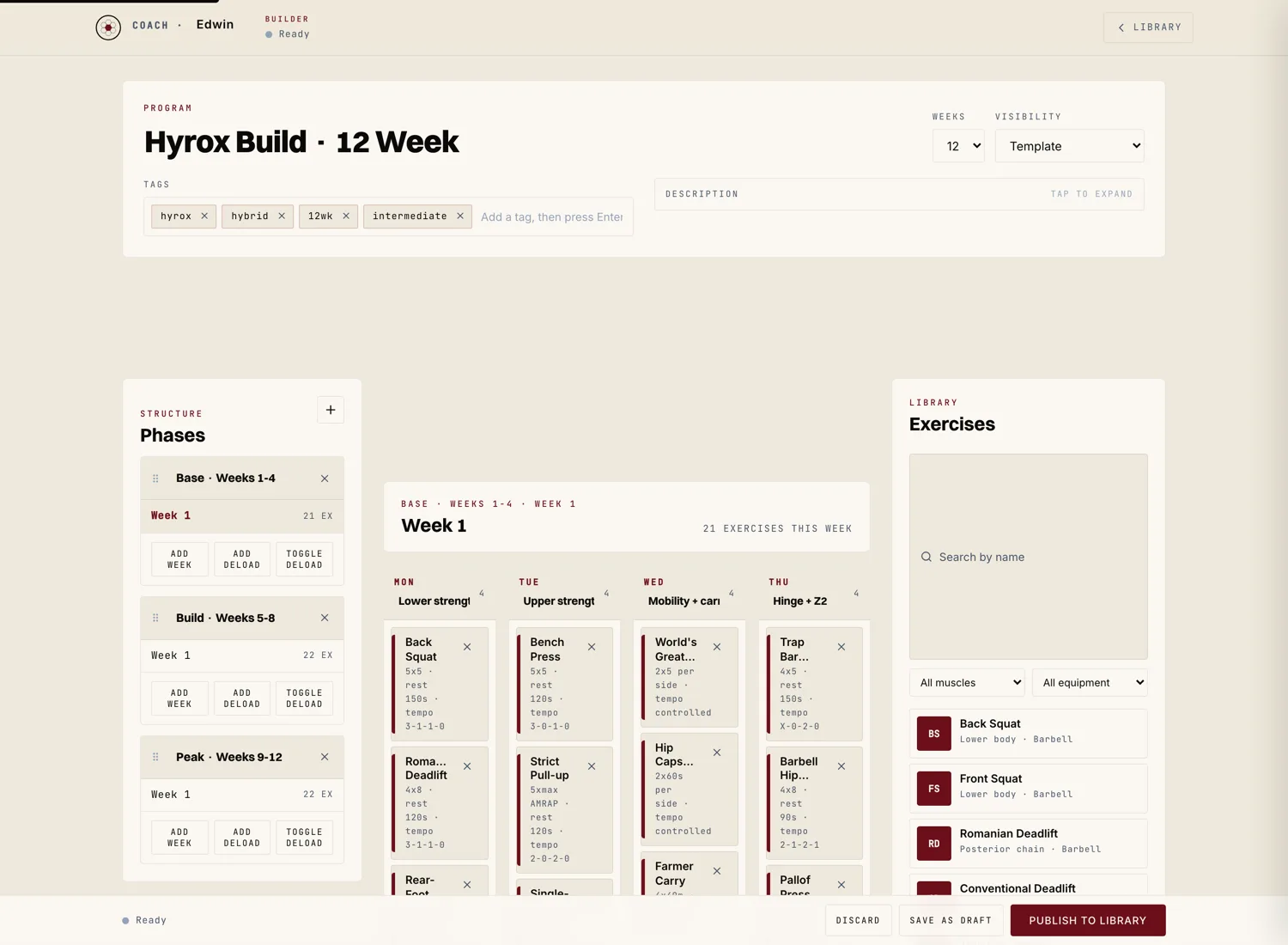
Add coaching notes
Every session has a notes field. This is where you talk to the athlete. Cues, intent, the reason the session looks the way it does. Athletes see these notes inside their session view. The more honest the note, the better the coaching shows up.
Save the program
Programs auto save every five seconds. When you're ready, hit "Publish" to make it available to assign to athletes. You can keep editing a published program. Athletes get a small "Updated" notice the next time they open a session you've changed.